How to Export, Sort, and Convert Your Medium Content as Markdown
Be prepared, don’t waste hours on manual conversion
In my previous article How to Export All Your Medium Content, we discussed how you can backup your content and the pros/cons surrounding what Medium provides.
For me, two of the biggest negatives of the export are that the content is in HTML and that stories, comments, and drafts are all grouped in a folder named posts.
So, I set out to develop a solution to address both of those deficiencies.
- I want the posts to be converted to Markdown
- I want the posts to be sorted into separate subfolders
This is written in Python, but the script is publicly available and I encourage any and all to fork the repo to either build it in another language or extend it for your own purposes. If you’re not comfortable picking up the baton, then go to the Issues tab and log an issue if there’s something you want changed and I’ll see what I can do.
The Solution
This custom script will search through a designated folder (defaulted to /posts) and it will do two things:
- Convert each HTML file into a Markdown file
- Sort the files into one of three subdirectories: (drafts, stories, comments)
The sorting mechanism was tricky to figure out, but the logic I’ve settled on is as follows:
- A draft’s filename begins with
draft_ - A story’s HTML content includes an
<h3>tag used for the title - A comment’s HTML content does not include an
<h3>tag
How to Use medium-story-parser
The medium-story-parser is a Python-based command line solution for converting Medium export content into sorted directories converted to Markdown.
If you don’t have Python installed, this article from Kinsta.com details the process on Windows, macOS, and Linux.

Once you have Python installed, you’ll need to make sure the dependencies are installed. To do this run the following command:
pip install beautifulsoup4 markdownifyThe beautifulsoup4 library is an HTML reader often used in webscraping. For us, we need this to differentiate between a story and a comment as well as extracting the body content to be converted.
The markdownify library is a utility for converting HTML content to Markdown.
Afterwards, you’ll need to download the medium-story-parser from either the link in the introduction or here: https://github.com/jhsu98/medium-story-parser
Once in the repository, click the green down arrow next to <> Code and choose Download Zip.
If you’re comfortable in GitHub then just clone the repo, but I’m writing these instructions for the less initiated.
Extract the zip file and then place the app.py file in your medium export directory.
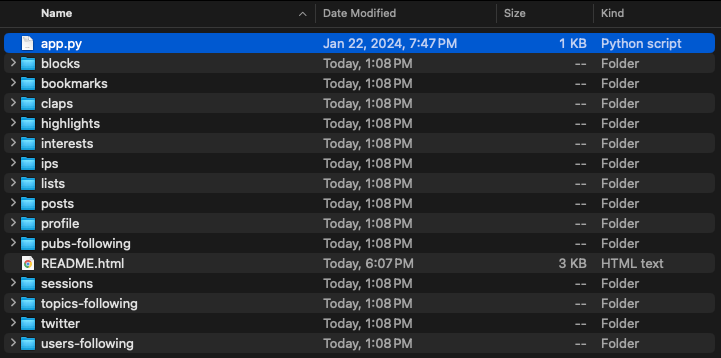
The script is defaulted to search for a directory named ./posts which is the default export format. If you don’t match up, you’ll either need to change your directory’s name or modify the script on this line:
DIRECTORY = './{UPDATE_THIS_VALUE}'You’re ready to rock ‘n roll. In your terminal, navigate to the directory where app.py lives and run the command
python app.pyAssuming you don’t see anything that looks like an error, check inside your posts directory and you should see three new directories with the sorted and converted content.
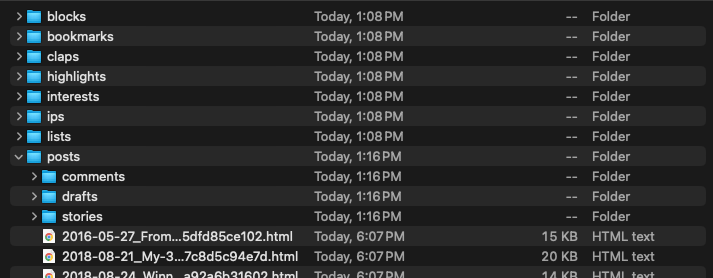
That’s it. If you ever need to run the script again, load up your posts folder with the content you want to convert and run the script any time you want. Files will be overwritten so in the event you made an edit to an article after export/conversion, a re-export/re-run will get you set up properly.
Happy archiving!