How to Find Out Who’s Linking to Your Website
Put Google’s crawlers to work for you
Have you ever wondered who’s linking to your site? Knowing where traffic is coming from can be valuable information.
Fortunately, there’s a simple solution. Even better, it’s free!
This tutorial will assume you already have a Google account.
Let’s go through step-by-step and learn how to set up Google Search Console, and begin monitoring your link traffic.
Go to Google Search Console
To begin, we have to go to the Google Search Console. Logged into your Google account, go to https://search.google.com/search-console/.
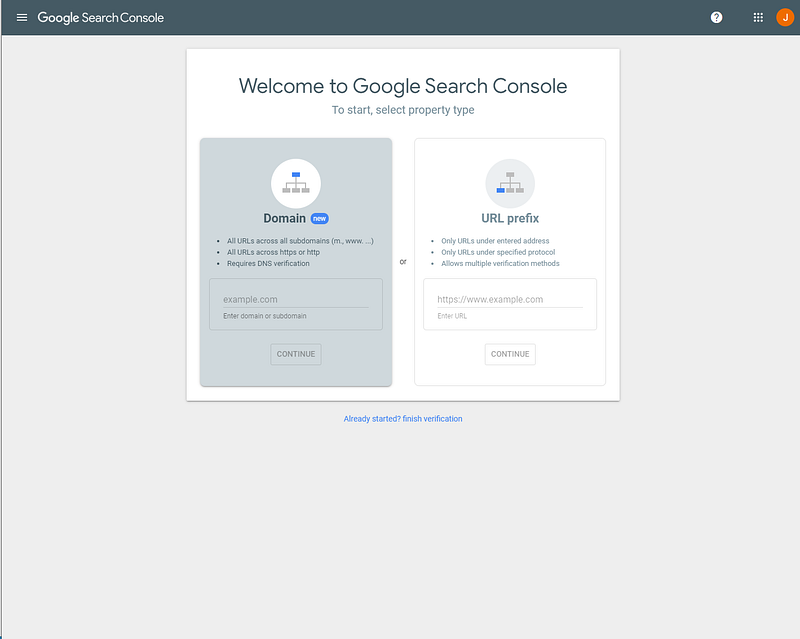
The first choice you have to make is whether you want to monitor traffic across the entire domain or a specific subdomain. Let’s do the entire domain, so enter your domain name in the left-hand choice.
Begin Domain Verification
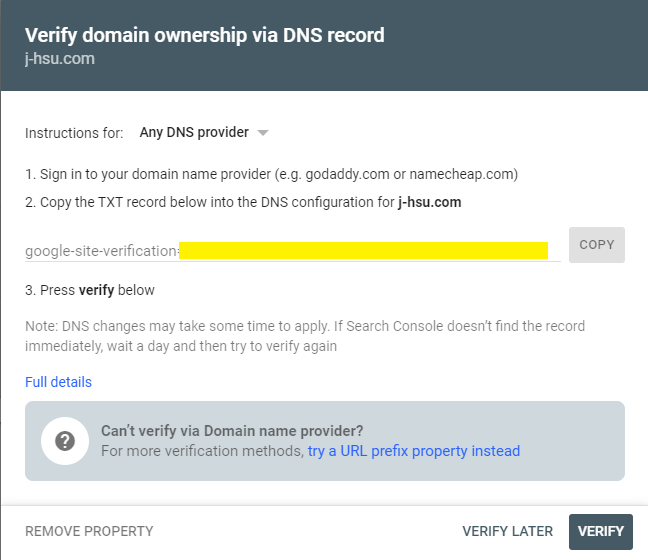
The next step is to verify that you own the specified domain. We’ll be going through the generic method, but if your DNS provider is available in the dropdown menu, then you can try the domain-specific method.
The modal window will have a text string that begins with google-site-verification. This is a string that you’ll have to add to your DNS records proving that you are an administrator for the domain.
Update DNS Entries
Go ahead and log into your domain provider. I use name.com, so that’s where the screenshots will be from.
Find the section for managing your DNS. It should look like a table with rows such as ANAME, MX, and CNAME.
You’ll need to add a row to this table. Here are the settings you’ll want:
- Type: TXT
- Host: Leave it blank.
- Answer: Paste the google-site-verification string.

After you’ve added the DNS entry, you’ll need to wait for about 24 hours to ensure the DNS update is distributed. Once you’ve given it a day, click that Verify button and you should be authenticated.
How to Navigate the Console
Once you’re verified as an owner of the domain, the Google Search Console will be available for you.
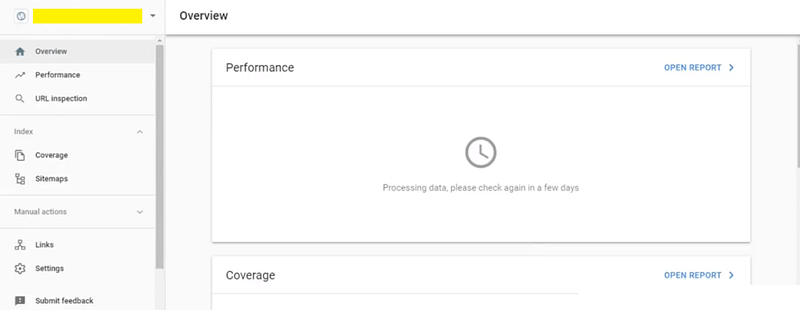
Unfortunately, you’ll have to do a little more waiting as Google’s crawlers process data. The official length is “a day or so” according to Google. For me, it took about 36 hours.
Eventually, your site will finish processing and you’ll be able to click on the Links section in the navigation. Here’s the good stuff!
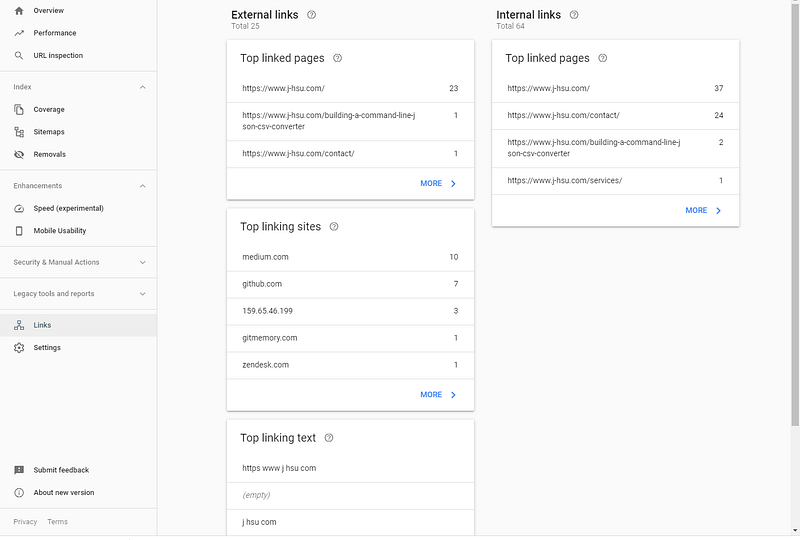
There are four main categories within the Links section.
- External Top Linked Pages: The top pages that are being linked to by external sites
- Top Linking Sites: The top sites that are linking back to you
- Top Linking Text: The text of links back to your site
- Internal Top Linked Pages: The top pages that are being linked to within your own site
From here you’ll be able to answer questions like “Which blog site do I get more traffic from?”
How do you monitor your site traffic? What decisions have you made as a result of learning about who’s linking to your site? Share your experiences below, and thanks for reading!