How to Use Handlebars with Netlify Serverless Functions
Less code, faster results, easier maintenance

Netlify Serverless Functions (or simply Functions for short) have been a game changer. Before, in order to build an HTML template, populate it with data, and have it be web-accessible required setting up some sort of server, such as ExpressJS or perhaps diving into something like React.
I always felt like the overhead required for this seemingly simple request never added up. Fortunately for us, Netlify Functions remove a majority of the initial burden and I’m here to take us the rest of the way.
After watching a variety of videos, reading message boards, and trying to understand documentation, I’ve finally connected the dots and had to share!
Scroll to the bottom to skip ahead. I have links to the starter repo as well as all the research resources that helped me along the way.
The Basics
Before we get started, let’s go over some basics if you’re unfamiliar with any or all of the technologies we’ll be using in this tutorial.
- Netlify: A Platform-as-a-Service (PaaS) that has positioned itself as beginner-friendly and a leader in hosting JAMstack applications.
- Functions: A Netlify feature that allows developers to publish self-contained code blocks without standing up a server to host them.
- Handlebars: A JavaScript templating framework.
It’s worth noting that Netlify Functions translate to AWS Lambda functions, but without the need for an AWS account and the feeling of being overwhelmed that comes with out. Additionally, while this tutorial uses Handlebars, any templating framework can be used.
Project Structure
Before we flesh out any code, let’s go over the project structure..
├── functions
│ └── hello.js
├── templates
│ └── hello.hbs
├── site
│ ├── index.html
│ └── styles.css
├── netlify.toml
└── package.json
Some key takeaways:
- Every Netlify deployment requires a publish directory that normally contains a static site. In this case we’re using the directory
site - Functions will be kept in their own directory. While you can name this anything you want, it’s easiest to keep things simple and name the directory
functions - Templates will be kept in their own directory for tidiness of the project.
- The
netlify.tomlfile holds the Netlify-specific configurations. While technically optional because the information can be filled out by the UI, it is highly recommended to include one in your projects.
Getting Started
If we’re building from scratch, you’ll want to start with the following commands:yarn init --yes
yarn add netlify-cli --dev
yarn add handlebars
Afterwards, create the directories and the necessary starting files:mkdir site functions templates
touch site/index.html site/styles.css
touch functions/hello.js
touch templates/hello.hbs
touch netlify.toml
I’m not going to go through filling out the hello.hbs or styles.css because their contents are ultimately trivial and the starter repo is always there to review.
Setup File: netlify.toml
Let’s start with our Netlify settings. There are three definitions we need to include: (1) build directories, (2) files to include with the function, and (3) a redirect schema to make accessing our functions a bit easier.[build]
publish = "site"
functions = "functions"[functions]
[functions.hello]
included_files = ["templates/hello.hbs"][[redirects]]
from = "/hello"
to = "/.netlify/functions/hello"
status = 200
The important part that took me a while to learn is the included_files definition. Looking at the file, within the section pertaining to functions, we declare a section for the function named hello and in that section define the files that will be included for the given function. This is absolutely critical because while the project is organized and has all the pieces together, what Netlify actually does is breaks apart each function and deploys them on their own, in a sense outside of the rest of the project.
By design, all Netlify Functions are deployed to /.netlify/functions/* so our redirect allows us to navigate to /hello rather than the full function path.
Setup File: hello.js
The only other file we’re going to look at in detail. Every function must export a handler which returns a response. With this in mind, we’ll start with:exports.handler = async (event) => {
return {
statusCode: 200,
body: "Hello World",
};
};
At this point, we can actually fire up a local development deployment with the command netlify dev in the terminal.
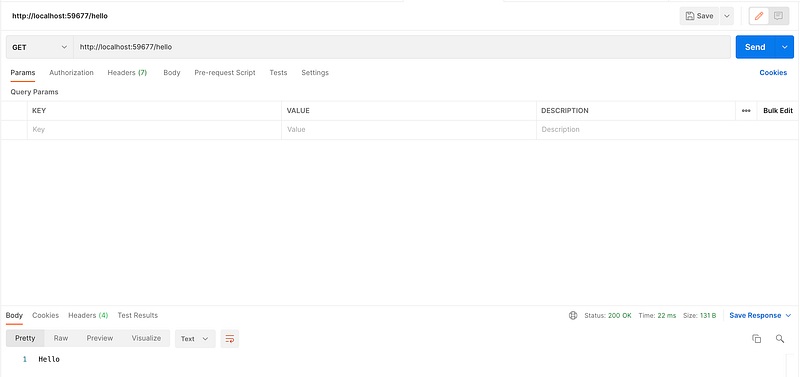
Now, instead of a simple string, we want to return HTML that is sourced from the hello.hbs file. We need to include the fs module, which allows us to read the file, and the handlebars module to do the actual compiling. Then, we’ll update our return by setting the content type and setting the body to our compiled template.const fs = require("fs");
const Handlebars = require("handlebars");exports.handler = async (event) => {
const tc = fs.readFileSync("./templates/hello.hbs", "utf8");
const template = Handlebars.compile(tc);return {
statusCode: 200,
headers: {
"content-type": "text/html; charset=utf-8"
},
body: template(),
};
};
With the above example, we are not actually sending any data to our template to be transposed. If you look at the sample repo, you’ll notice some additional code that retrieves queryStringParameters and creates an object that is passed to the template() function call in the return body.
From here, if you stopped your dev environment run the netlify dev command again. Otherwise, in your browser navigate http://localhost:XXXXX/hello where XXXXX is replaced by the randomized port.

Next Steps
Now that you have Netlify, Serverless Functions, and Handlebars running in concert, it’s time to deploy live to Netlify. I recommend creating your own repo on GitHub and connecting that repo to Netlify for automatic deployments.
Additionally, if you have more than one template then add them to the templates directory. Make sure to update the included_files by either listing each file in the array or using a wildcard character. The below example would include any file with a .hbs extension:included_files = ["templates/*.hbs"]
Conclusion
As mentioned at the beginning of the article, this took quite a bit of research to come to. There are many articles on “running Express on Netlify”, but what I wanted to do was bypass Express entirely. As promised, here is the starter repo as well as a link to a live demo.
- Starter Repo: https://github.com/jhsu98/netlify-handlebars-starter
- Live Demo: https://cheery-kitten-76c923.netlify.app/hello
There are a lot of folks who helped me along the way and to give credit I’ll link all the research even if it didn’t make it into the final starter template.
- Server-side rendering (SSR) with Netlify
- Serverless Express with Handlebars
- Netlify Serverless Functions with Netlify Dev
- Create Your First Netlify Serverless Function
I hope you liked this article! Subscribe to be notified when I publish new articles or even better, support me by joining the Medium community as a paid subscriber.